
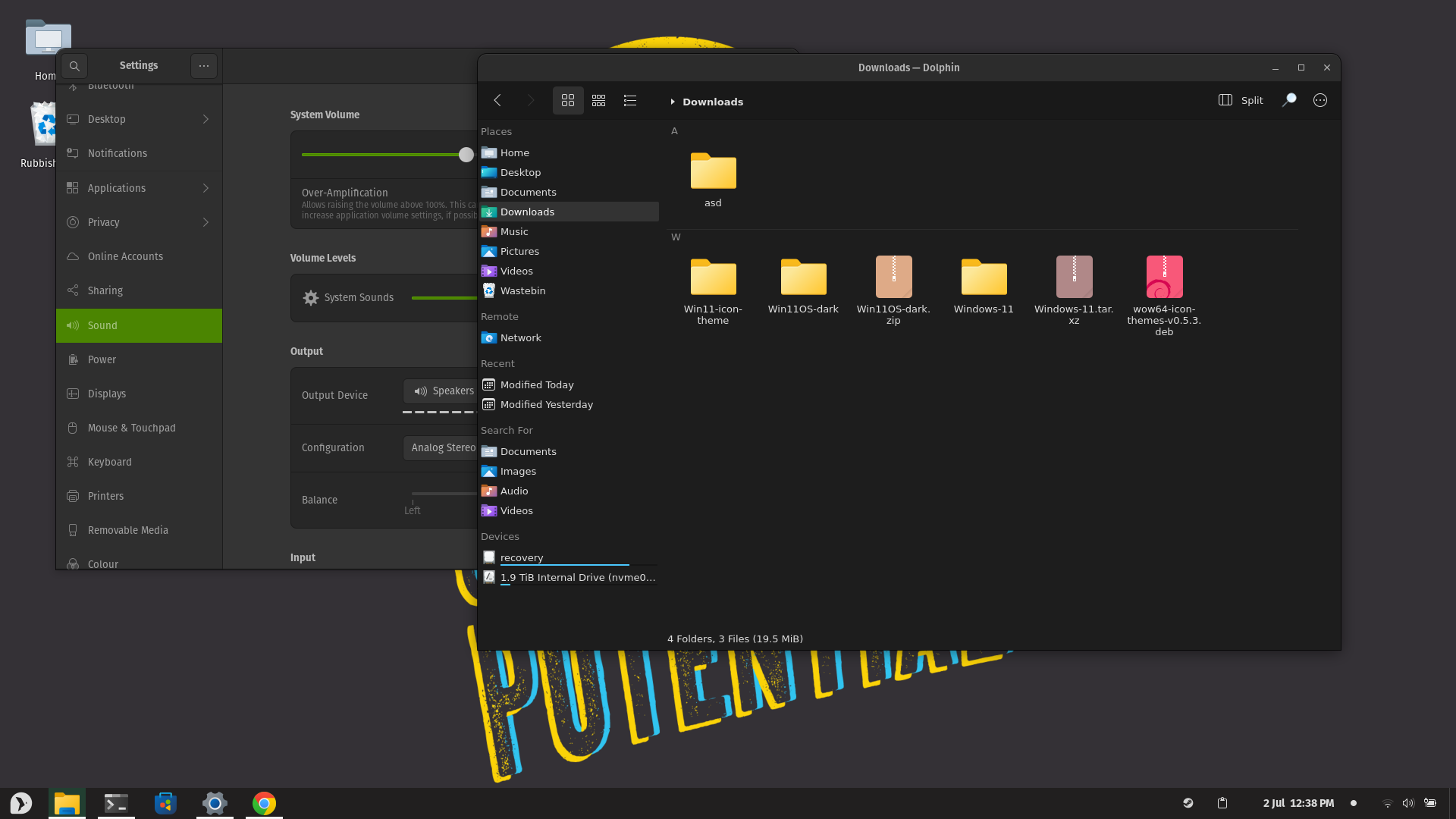
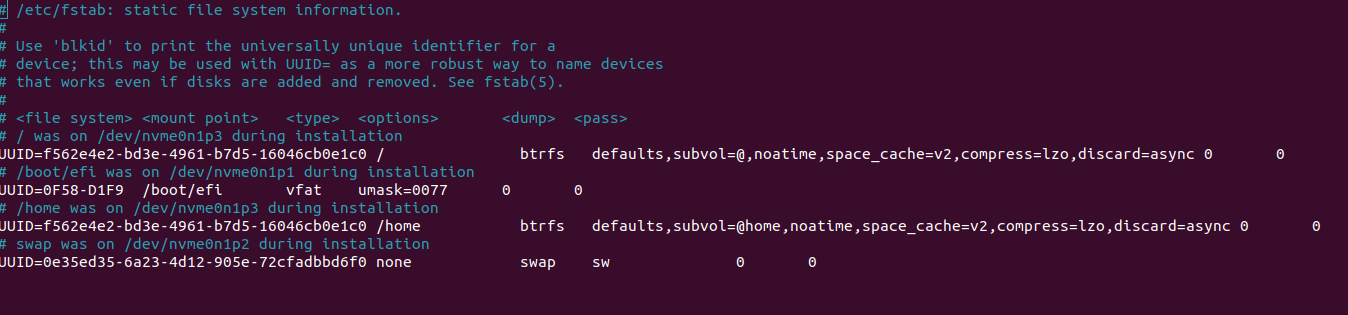
When installing on BTRFS, make sure that @ (as /) and @home (as /home) subvolumes are created, otherwise Timeshift won't work.
In my case I'm using an Intel 660p NVME SSD, but it is probably a good idea to read up and decide on the individual options yourself as different options will work better or worse, or in some cases much worse depending on the disks used.
,noatime,space_cache=v2,compress=lzo,discard=async 0 0
Another Note on BTRFS: never use more than 1 device for a BTRFS installation, not even for RAID 0, learned the latter on my own, it worked really bad with constant freezes, keeping it simple seems better for now.
sudo apt install ubuntu-restricted-extras
sudo apt-get install icoutils dolphin kde-cli-tools konsole kfind cifs-utils menulibre
sudo apt install flatpak gnome-software-plugin-flatpak gnome-software
sudo flatpak remote-add --if-not-exists flathub https://flathub.org/repo/flathub.flatpakrepo
sudo apt install ttf-mscorefonts-installer
xdg-mime default org.kde.dolphin.desktop inode/directory
sudo apt install htop tmux bmon iotop
sudo apt install powertop
sudo powertop
Determine whats sipping power and find a way to stop it, or:
sudo powertop --auto-tune
...and then if that doesnt cause problems, find a way to run that on start.
Note: In my case it does cause me a slight problem as if my wireless mouse dongle is plugged in when i boot up the machine the tool will somehow configure it to use less power and as part of that configuration it causes the mouse to become unresponsive soon after i stop moving it for a bit and then move it again is when it takes a while longer to register. I just move it to a different port and that solves it since Ive set that up to only run after boot.
For hybrid graphics just make sure there is a Xorg session running on the gpu, that means that it is probably working properly. To launch apps just add switcherooctl launch before any app you want to launch in order to launch it on dedicated graphics.
watch -n 1 nvidia-smi to check that things are in fact running on the dedicated.
-
Install Tweaks
sudo apt install gnome-tweaks
-
Install: https://github.com/yeyushengfan258/Win11-icon-theme
-
Select that icon theme in Tweaks, (in this preview I'm using yaru-olive-dark for the legacy applications)
-
Install Kvantum
sudo apt install qt5-style-kvantum qt5-style-kvantum-themes
-
Add following to
/etc/environment:QT_STYLE_OVERRIDE=kvantum -
Install this theme within Kvantum: https://www.opendesktop.org/p/1554628/
-
Tick
- Disable Composite Effects
To achieve the look and functionality in the preview, I have also installed and tweaked some gnome extensions, here are some of the ones that I currently use in this example:
- ArcMenu
- Burn My Windows
- Clipboard History
- Dash to Panel
- Desktop Icons
- Gnome 4x UI Improvements
- Blur My Shell
- GameMode

Recovery partition
When installing the recovery partition, use ext4 for simplicity and install the refind boot manager, if possible do not install grub. If grub is installed, after installing refind, chroot from the original installation and install grub again.
sudo apt install btrfs-progs timeshiftTimeshift can then be configured to manage the btrfs snapshots of the other installation, just select the correct partition.
add following to fstab:
The above fstab entries is just to make it easier to browse files and snapshots of the other installation, in the event of disaster, this is probably the most accessible I can make it so that I can copy files, should I need to do that