
Retrieving list item changes with the SharePoint Online Folder.GetListItemChanges REST API in Microsoft Flow
This post demonstrates how to retrieve SharePoint list item changes in Microsoft Flow using the SharePoint - Send an HTTP request to SharePoint action and the SharePoint Online Folder.GetListItemChanges REST API.
This is something I started looking at after reading this set of tweets by John Liu:
#FlowNinja still here! OK need to talk about why this is important:
— John LIU (@johnnliu) 2 June 2018
1. 12+ lookups prevent your SharePoint trigger working? OK.
2. Want to handle batch changes per item? Perform Group-By on change batch and emit latest event.
3. want to attach Flow to 500 libraries? OK https://t.co/TH8i8zoJER
John's tweets demonstrate that it's possible (and relatively simple) to use Flow to register (and maintain) SharePoint list webhooks and also handle the corresponding events in a way that scales effortlessly.
To expand on some of John's points:
Duplicating a non-trivial Flow each time you want to apply it to a new list instance does not scale well - any change you make in the original Flow now has to be replicated in the Flow copies (see Don't Repeat Yourself).
While you could work around the above issue with the nested Flow pattern (e.g. several 'When a list item is created' list instance Flows call a single Http Trigger Flow which contains the business logic and actually does the work), this still doesn't scale well beyond a handful of lists.
What if you want to automatically handle events in new sites/libraries without additional Flows?
What if you want to handle events that aren't covered by existing Flow triggers, such as Rename, Move, Restore?
What if you want to process list events on a scheduled interval rather than as they happen?
What if you want to handle multiple item events (e.g. Add, Update, Update, Update, Delete) in one place and de-duplicate / throttle your event handling?
As John demonstrated, webhooks are an effective way to register an event handler which gets notified when something happens in a list, but the webhook handler needs to do some additional work to discover exactly what events took place in the list. This post explains how to retrieve that list of events.
At the time of writing, the MS SharePoint webhooks documentation points to the
List.GetChangesAPI for retrieving a list of changes in your webhook handler. In my testing, this API did not return values for the following properties (they were blank):
- Editor
- EditorEmailHint
- ServerRelativeUrl
The above are quite useful properties to have when processing a set of changes.
Luckily the
Folder.GetListItemChangesAPI does return values for these properties, so this post focuses on that API.
- Create a blank Flow.
- Select the
When a HTTP request is receivedtrigger and copy/paste the following JSON as theRequest body JSON schema:
{
    "type": "object",
    "properties": {
        "siteUrl": {
            "type": "string"
        },
        "listId": {
            "type": "string"
        },
        "changeTokenPropertyName": {
            "type": "string"
        }
    }
}Using the
When a HTTP request is receivedtrigger allows calling this Flow from other Flows (A.K.A. the 'nested Flow' pattern) and makes the Flow reusable.For example: this Flow could be called from a scheduled Flow (if change processing should happen at designated intervals) or webhook handler Flow (if change processing should happen as soon as possible).
- Add a
Data Operations - Composeaction, rename it toSet ChangeTypeand copy/paste the followingInputsvalue:
[
    "NoChange",
    "Add",
    "Update",
    "DeleteObject",
    "Rename",
    "MoveAway",
    "MoveInto",
    "Restore",
    "RoleAdd",
    "RoleDelete",
    "RoleUpdate",
    "AssignmentAdd",
    "AssignmentDelete",
    "MemberAdd",
    "MemberDelete",
    "SystemUpdate",
    "Navigation",
    "ScopeAdd",
    "ScopeDelete",
    "ListContentTypeAdd",
    "ListContentTypeDelete",
    "Dirty",
    "Activity"
]
The above values were taken from the SharePoint Online CSOM ChangeType enum documentation, but at the time of writing this appears to be unavailable (possibly related to documentation moving from MSDN to docs.microsoft.com).
- Add a
Data Operations - Composeaction, rename toSet Headersand copy/paste the following JSON:
{
    "Accept": "application/json; odata=nometadata",
    "Content-Type": "application/json"
}
So far your Flow should look like something like this:

The
GetListItemChangesAPI returns a change token with each change, which represents the date and time of the change. Including one of these change tokens with subsequent requests to the API allows you to retrieve only changes that happened since that change token, allowing you to skip changes that you have already processed.In order to make use of this, each time the Flow runs it checks the list's root folder property bag for a previously saved change token to include in the
GetListItemChangesrequest.
-
Add a
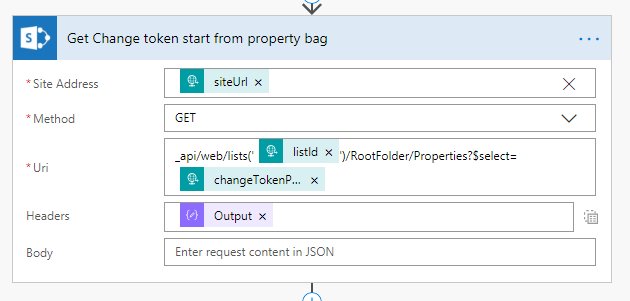
SharePoint - Send an HTTP request to SharePointaction and rename toGet Change token start from property bag. -
Configure as shown below with properties from the
When a HTTP request is receivedandSet Headersactions:Name Value Site Address siteUrlMethod GET Uri _api/web/lists(' listId')/RootFolder/Properties?$select=changeTokenPropertyNameHeaders Output(Set Headers)
- Add a
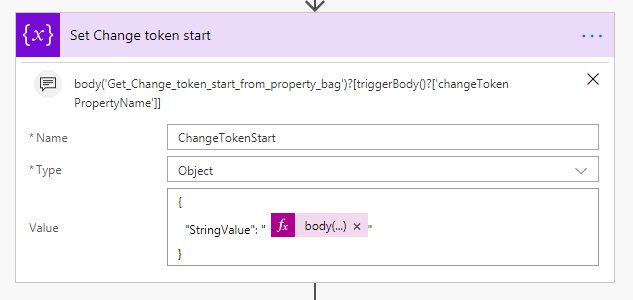
Variables - Initialize variableaction and rename toSet Change token start. - Set the
Nameproperty toChangeTokenStart. - Set the
Typeproperty toObject. - Copy/paste the following JSON into the
Valueproperty:
{
    "StringValue": "@{body('Get_Change_token_start_from_property_bag')?[triggerBody()?['changeTokenPropertyName']]}"
}- The action should resemble the following image:
This
ChangeTokenStartJSON object will be used in the followingGetListItemChangesrequest.
-
Add a
Data Operations - Composeaction and rename toCompose Get list changes body. -
Copy/paste the following JSON as the
Inputsvalue:{ "query": { "Add": true, "Update": true, "SystemUpdate": false, "DeleteObject": true, "Move": true, "Rename": true, "Restore": true, "Item": true, "File": true, "RecursiveAll": true, "ChangeTokenStart": @{if(empty(body('Get_Change_token_start_from_property_bag')), 'null', variables('ChangeTokenStart'))} } }

The above JSON represents an instance of the
ChangeQueryclass. See the MSDN ChangeQuery class reference for the full list ofqueryproperties.If a change token was retrieved from the list root folder property bag in the previous actions, this is assigned to the
ChangeTokenStartproperty. If not, the property value is set tonull.
SystemUpdateshouldn't usually be used as an event trigger.SystemUpdateis often used by event handlers that need to update the item that triggered them without triggering additional events (as this would create an infinite loop). You may want to leaveSystemUpdateset totruein the change query for debugging purposes and filter outSystemUpdateevents in the calling Flow (as it's quite likely you would want to filter changes to the relevant event types in the calling Flow anyway) or you can set it tofalsehere as shown above.On a related note: Andrew Koltyakov has written a great blog on List Items System Update options in SharePoint Online if you're interested in triggering a
SystemUpdatefrom Flow.The
Updatechange event occurs as a result of quite a few different actions, such as list item field updates, file content changes and other actions that are also covered by more specific change events - e.g. rename (as shown in the example at the end of this post).
RecursiveAll: truein combination with callingGetListItemChangeson the root folder of the list means that the query will return items from anywhere in the target list / library. You could set this tofalseand target a particular folder if you only wanted to retrieve changes at that scope.
-
Add a
SharePoint - Send an HTTP request to SharePointaction, rename toGet list changesand configure with the values shown below:Name Value Site Address siteUrlMethod POST Uri _api/web/lists(' listId')/RootFolder/GetListItemChanges?$Expand=RelativeTime&$top=1000Headers Output(Set Headers)Body Output(Compose Get list changes body)
The
$top=1000query string parameter means that up to 1000 changes will be returned. This is the default, but can be reduced if you want limit results to smaller batches or test paging over a set of results with a small number of changes.If you're running this Flow on a schedule and/or expect more than 1000 changes each time the Flow runs, you'll want to adjust things so that the
Get list changesaction executes in ado untilloop which updates theChangeTokenStartvariable (to the last change token) at the end of each iteration and loops until there are no more changes to process.
- Your
Get list changesaction should look like this:

- Add a
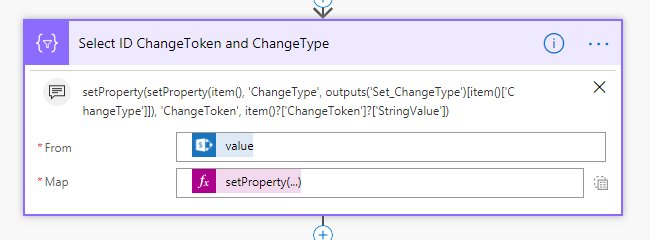
Data Operations - Selectaction and rename toSelect ID ChangeToken and ChangeType. - Set the
Fromproperty of the action to the followingExpressionvalue:
body('Get_list_changes')?['value']The
valueproperty of theGetListItemChangesresponse contains the array of changes.
- Switch the
Mapproperty totext modeby clicking the icon to the right of theEnter keyandEnter valuefields. - Set the
Mapproperty to the followingExpressionvalue:
setProperty(setProperty(item(), 'ChangeType', outputs('Set_ChangeType')[item()['ChangeType']]), 'ChangeToken', item()?['ChangeToken']?['StringValue'])This expression replaces the ChangeType number value returned by the
GetListItemChangesAPI with the corresponding (human readable) ChangeType enum string (e.g.AddorUpdate) and replaces theChangeTokenobject with it'sStringValueproperty value (unwrapping the value makes the list of changes a bit easier to read).
- Your
selectaction should look like this:
This Flow needs to handle the scenario where there are no new changes to process (if nothing has happened since the change token that you pass to the
GetListItemChangesAPI).
-
Add a
conditionand rename toIf there are no new changes, return an empty array and exit the Flow. -
Set the first condition value to the following expression:
length(body('Select_ID_ChangeToken_and_ChangeType'))-
Set the comparison dropdown to
is equal toand the second condition value to0. -
In the
Yesbranch, add aRequest - Responseaction, rename toResponse - empty arrayand configure as follows:Name Value Status Code 200 Headers Content-Type: application/json Body []Response Body JSON schema See below. -
Copy/paste the following JSON into the
Response Body JSON schemaproperty value:
{
    "type": "array",
    "items": {
        "type": "object",
        "properties": {
            "RelativeTime": {
                "type": "string"
            },
            "SiteId": {
                "type": "string"
            },
            "Time": {
                "type": "string"
            },
            "Editor": {
                "type": "string"
            },
            "EditorEmailHint": {
                "type": "string"
            },
            "ItemId": {
                "type": "integer"
            },
            "ListId": {
                "type": "string"
            },
            "ServerRelativeUrl": {
                "type": "string"
            },
            "SharedByUser": {},
            "SharedWithUsers": {},
            "UniqueId": {
                "type": "string"
            },
            "WebId": {
                "type": "string"
            },
            "ChangeType": {
                "type": "string"
            },
            "ChangeToken": {
                "type": "string"
            }
        },
        "required": [
            "RelativeTime",
            "SiteId",
            "Time",
            "Editor",
            "EditorEmailHint",
            "ItemId",
            "ListId",
            "ServerRelativeUrl",
            "UniqueId",
            "WebId",
            "ChangeType",
            "ChangeToken"
        ]
    }
}- Add a
Terminateaction and rename toTerminate - no changes. - Set the
StatustoSucceeded. - Your condition should look like the following image:

- Add a
Data Operations - Parse JSONaction and rename toParse last change details. - Set the
Contentproperty to the following JSON value:
{
    "lastChangeToken": "@{last(body('Select_ID_ChangeToken_and_ChangeType'))['ChangeToken']}",
    "siteId": "@{last(body('Select_ID_ChangeToken_and_ChangeType'))['SiteId']}",
    "webId": "@{last(body('Select_ID_ChangeToken_and_ChangeType'))['WebId']}"
}
This retrieves the
ChangeToken,SiteIdandWebIdproperties from the last change item returned in theGetListItemChangesrequest response.
- Set the
Schemaproperty to the following JSON value:
{
    "type": "object",
    "properties": {
        "lastChangeToken": {
            "type": "string"
        },
        "siteId": {
            "type": "string"
        },
        "webId": {
            "type": "string"
        }
    }
}- Your
Parse last change detailsaction should resemble the following image:

The list root folder's
UniqueIdproperty is required for updating the root folder's property bag (in the subsequent action).
- Add a
SharePoint - Send an HTTP request to SharePointaction and rename toGet folder ID

-
Update the action properties as listed below:
Name Value Site Address siteUrlMethod GET Uri _api/web/lists(' listId')/RootFolder?$select=uniqueIdHeaders Output(Set Headers)Body (Empty)
- Add a
Data Operations - Parse JSONaction and rename to Parse Get folder ID

-
Update the action properties as follows:
Name Value Content Body(Get folder ID)Schema See below. -
Set the action
Schemaproperty to the following JSON value:
{
    "type": "object",
    "properties": {
        "UniqueId": {
            "type": "string"
        }
    }
}There isn't currently a REST API for setting list folder property bag values. The best workaround I'm aware of is capturing the request that is sent to SharePoint by the CSOM API when setting a list folder property bag value (e.g. using
PnP PowerShelland Telerik'sFiddlerdebugging proxy) and then replicating the captured request from Flow, with the relevant variables replaced.Persisting the last change token retrieved from the
GetListItemChangesAPI in the list root folder property bag means that subsequent requests to this Flow (with the samechangeTokenPropertyNameparameter) can continue from that change token (returning only new changes) rather than returning changes that have already been processed by the calling Flow.
- Add a
SharePoint - Send an HTTP request to SharePointaction and rename toSet Change token start property bag value.

-
Update the action properties as follows:
Name Value Site Address siteUrlMethod POST Uri _vti_bin/client.svc/ProcessQuery Headers Content-Type: text/xml Body See below. -
Copy/paste the following XML into the action's
Bodyproperty property:
<Request AddExpandoFieldTypeSuffix="true" SchemaVersion="15.0.0.0" LibraryVersion="16.0.0.0" ApplicationName="SharePoint PnP PowerShell Library"
    xmlns="http://schemas.microsoft.com/sharepoint/clientquery/2009">
    <Actions>
        <Method Name="SetFieldValue" Id="42" ObjectPathId="37">
            <Parameters>
                <Parameter Type="String">@{triggerBody()?['changeTokenPropertyName']}</Parameter>
                <Parameter Type="String">@{body('Parse_last_change_details')?['lastChangeToken']}</Parameter>
            </Parameters>
        </Method>
        <Method Name="Update" Id="43" ObjectPathId="27" />
</Actions>
    <ObjectPaths>
        <Property Id="37" ParentId="27" Name="Properties" />
        <Identity Id="27" Name="ab8c6d9e-3059-5000-c7a7-1c96cb3c9e84|740c6a0b-85e2-48a0-a494-e0f1759d4aa7:site:@{body('Parse_last_change_details')?['siteId']}:web:@{body('Parse_last_change_details')?['webId']}:folder:@{body('Parse_Get_folder_ID')?['UniqueId']}" />
</ObjectPaths>
</Request>- Add a
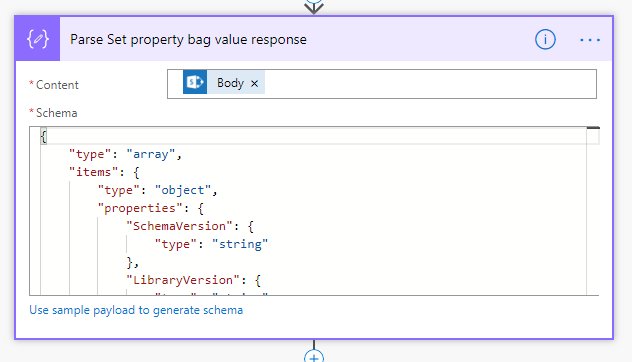
Data Operations - Parse JSONaction.
- Set the
Contentproperty to theBodyoutput of theSet change token start property bag valueaction. - Copy/paste the following JSON into the
Schemaproperty:
{
    "type": "array",
    "items": {
        "type": "object",
        "properties": {
            "SchemaVersion": {
                "type": "string"
            },
            "LibraryVersion": {
                "type": "string"
            },
            "ErrorInfo": {
                "type": [
                    "object",
                    "null"
                ],
                "properties": {
                    "ErrorMessage": {
                        "type": "string"
                    },
                    "ErrorValue": {},
                    "TraceCorrelationId": {
                        "type": "string"
                    },
                    "ErrorCode": {
                        "type": "number"
                    },
                    "ErrorTypeName": {
                        "type": "string"
                    }
                }
            },
            "TraceCorrelationId": {
                "type": "string"
            }
        },
        "required": [
            "SchemaVersion",
            "LibraryVersion",
            "ErrorInfo",
            "TraceCorrelationId"
        ]
    }
}
The CSOM API that the previous action mimics does not return an HTTP error code if something goes wrong with the request, but returns the error details in a 'success' (HTTP 200) response.
This action retrieves the error message from the
Set Change token start property bag valuerequest response, if there is one.
-
Add a
Variables - Initialize variableaction. -
Update the properties of the actions as follows:
Name Value Name Set property bag errorType String Value See below. -
Update the
Valueproperty of the action to the followingExpression:
body('Parse_Set_property_bag_value_response')[0].ErrorInfo?.ErrorMessage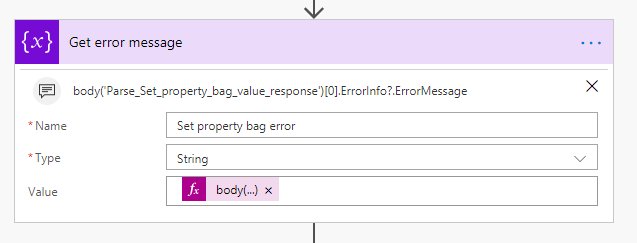
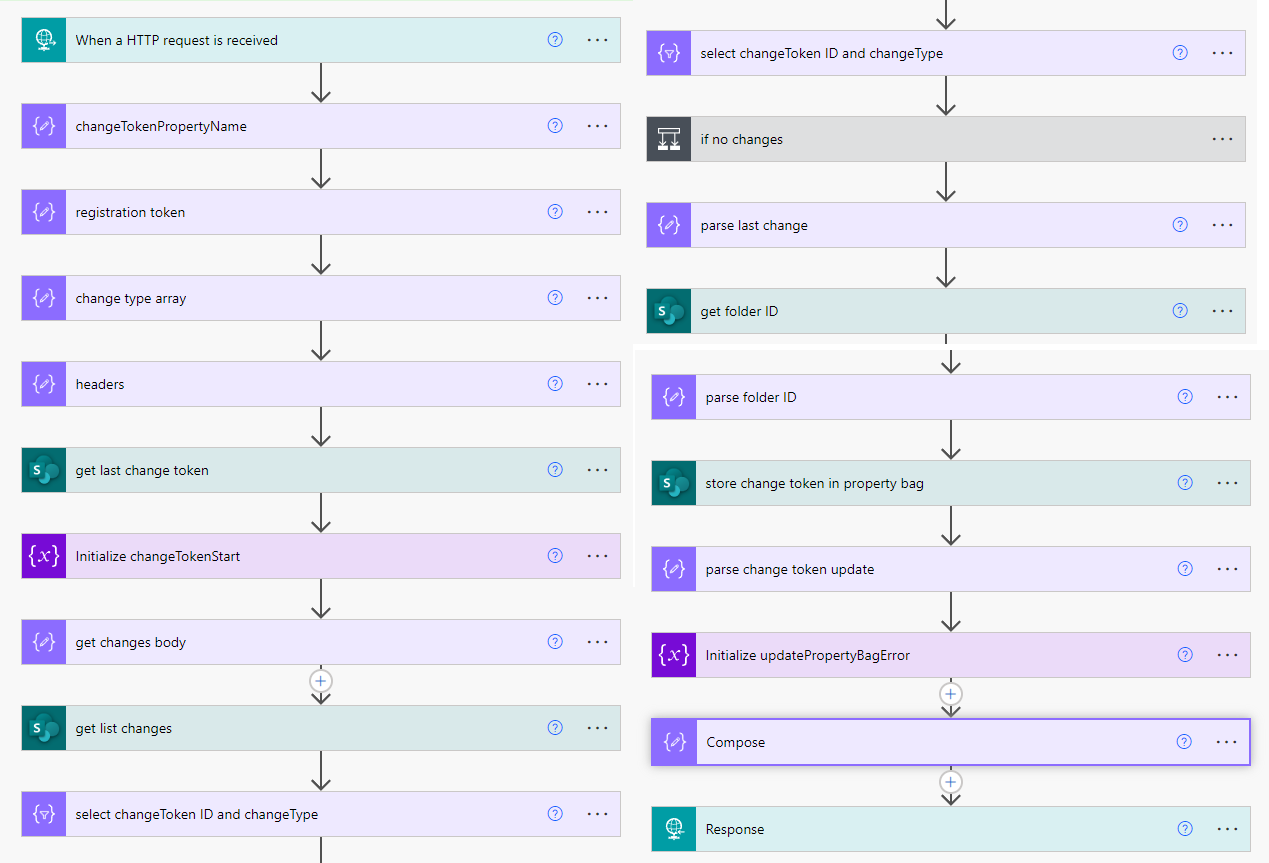
The final step in the Flow is to return the retrieved list item changes, but if there was an error persisting the change token, this should be returned instead.
- Add a
conditionand rename toHandle Set property bag value response. - Set the first condition value to the
Set property bag errorvariable. - Set the comparison type to
is equal to. - Leave the second condition value empty.
- Add a
Request - Responseaction to theYesbranch and rename toResponse - return changes. As the name suggests, this action will return the set of changes to the calling Flow. - Set the
Status Codeto200. - Add a
Content-Typeheader with the valueapplication/json. - Set the
Bodyvalue to theOutputof theSelect ID ChangeToken and ChangeTypeaction. - Copy/paste the following JSON into the
Response Body JSON Schemafield (this is the same schema used by theResponse - empty arrayaction earlier in the Flow):
{
    "type": "array",
    "items": {
        "type": "object",
        "properties": {
            "RelativeTime": {
                "type": "string"
            },
            "SiteId": {
                "type": "string"
            },
            "Time": {
                "type": "string"
            },
            "Editor": {
                "type": "string"
            },
            "EditorEmailHint": {
                "type": "string"
            },
            "ItemId": {
                "type": "integer"
            },
            "ListId": {
                "type": "string"
            },
            "ServerRelativeUrl": {
                "type": "string"
            },
            "SharedByUser": {},
            "SharedWithUsers": {},
            "UniqueId": {
                "type": "string"
            },
            "WebId": {
                "type": "string"
            },
            "ChangeType": {
                "type": "string"
            },
            "ChangeToken": {
                "type": "string"
            }
        },
        "required": [
            "RelativeTime",
            "SiteId",
            "Time",
            "Editor",
            "EditorEmailHint",
            "ItemId",
            "ListId",
            "ServerRelativeUrl",
            "UniqueId",
            "WebId",
            "ChangeType",
            "ChangeToken"
        ]
    }
}- Add a
Request - Responseaction to theNobranch and rename toResponse - return error. - Set the
Status Codeto500. - Add a
Content-Typeheader with the valueapplication/json. - Set the
Bodyfield value to the followingExpression:
body('Parse_Set_property_bag_value_response')[0].ErrorInfo- Copy/paste the following JSON into the
Response Body JSON Schemafield:
{
    "type": [
        "object",
        "null"
    ],
    "properties": {
        "ErrorMessage": {
            "type": "string"
        },
        "ErrorValue": {},
        "TraceCorrelationId": {
            "type": "string"
        },
        "ErrorCode": {
            "type": "number"
        },
        "ErrorTypeName": {
            "type": "string"
        }
    }
}- Add a
Control - Terminateaction to theNobranch and rename toTerminate - error. - Set the
StatustoFailed. - Set the
Codeto500. - Set the
Messageto theSet property bag errorvariable. - The finished condition should look like this:

This Flow can be called from another Flow using the HTTP - HTTP action with the following properties:
| Name | Value |
|---|---|
| Method | POST |
| Uri | The HTTP POST URL property of the When a HTTP request is received trigger. |
| Key | Value |
|---|---|
| Content-Type | application/json |
{
    "siteUrl": "https://tenant.sharepoint.com/sites/siteName",
    "listId": "00000000-0000-0000-0000-000000000000",
    "changeTokenPropertyName": "ScheduledFlowChangeToken"
}| Name | Description |
|---|---|
siteUrl |
The absolute URL of the site (web) containing the list. |
listId |
The GUID of the list. |
changeTokenPropertyName |
The list root folder property bag property name that will be used to store the last change token retrieved from the GetListItemChanges API. This will be created if it doesn't already exist. This should be unique to the calling Flow. |
The following JSON is an example of the list item change events returned from this Flow after renaming a file. For this single user action, both the Update and Rename events are triggered:
[
    {
        "RelativeTime": "1|0|1",
        "SiteId": "3f37b0d9-b37a-40d4-b1bf-eaf463dec366",
        "Time": "2018-08-12T10:21:20Z",
        "Editor": "Leo Siddle",
        "EditorEmailHint": "[email protected]",
        "ItemId": 132,
        "ListId": "1510ef2b-9d29-460d-a16e-ec68ef14d0dc",
        "ServerRelativeUrl": "/sites/SiteName/Shared Documents/fileName.PNG",
        "SharedByUser": null,
        "SharedWithUsers": null,
        "UniqueId": "252d4c5d-eb73-4113-a737-809cb9c849b8",
        "WebId": "a5783ce5-c53d-4e4d-af38-e3bede99c712",
        "ChangeType": "Update",
        "ChangeToken": "1;3;1510ef2b-9d29-460d-a16e-ec68ef14d0dc;636696660804600000;249848385"
    },
    {
        "RelativeTime": "1|0|1",
        "SiteId": "3f37b0d9-b37a-40d4-b1bf-eaf463dec366",
        "Time": "2018-08-12T10:21:21Z",
        "Editor": "Leo Siddle",
        "EditorEmailHint": "[email protected]",
        "ItemId": 132,
        "ListId": "1510ef2b-9d29-460d-a16e-ec68ef14d0dc",
        "ServerRelativeUrl": "/sites/SiteName/Shared Documents/newFileName.PNG",
        "SharedByUser": null,
        "SharedWithUsers": null,
        "UniqueId": "252d4c5d-eb73-4113-a737-809cb9c849b8",
        "WebId": "a5783ce5-c53d-4e4d-af38-e3bede99c712",
        "ChangeType": "Rename",
        "ChangeToken": "1;3;1510ef2b-9d29-460d-a16e-ec68ef14d0dc;636696660805800000;249848386"
    }
]





@zplume
Fantastic tutorial!
There seem to be some limits around what is allowed as input for the changeTokenPropertyName. I was attempting to use the calling workflow's GUID as the unique changeTokenPropertyName, but it returned 400.
I can't find any docs outlining acceptable input for the changeTokenPropertyName. If anyone finds them, please post a link or details here for reference.